

Studio-Image
Studio-Image (ImageStudio) is OpenQiao's all-in-one workspace for AI image creation. It supports text-to-image generation, reference-guided generation, multi-model comparison, image editing, creation history, result preview and download, as well as subscription and pay-as-you-go billing modes.
You can start with a text prompt or upload reference images to guide the subject, style, or composition. Generated images can then be opened in the editing workspace, where natural-language instructions and visual tools help you make local changes, expand the canvas, adjust lighting, and more.
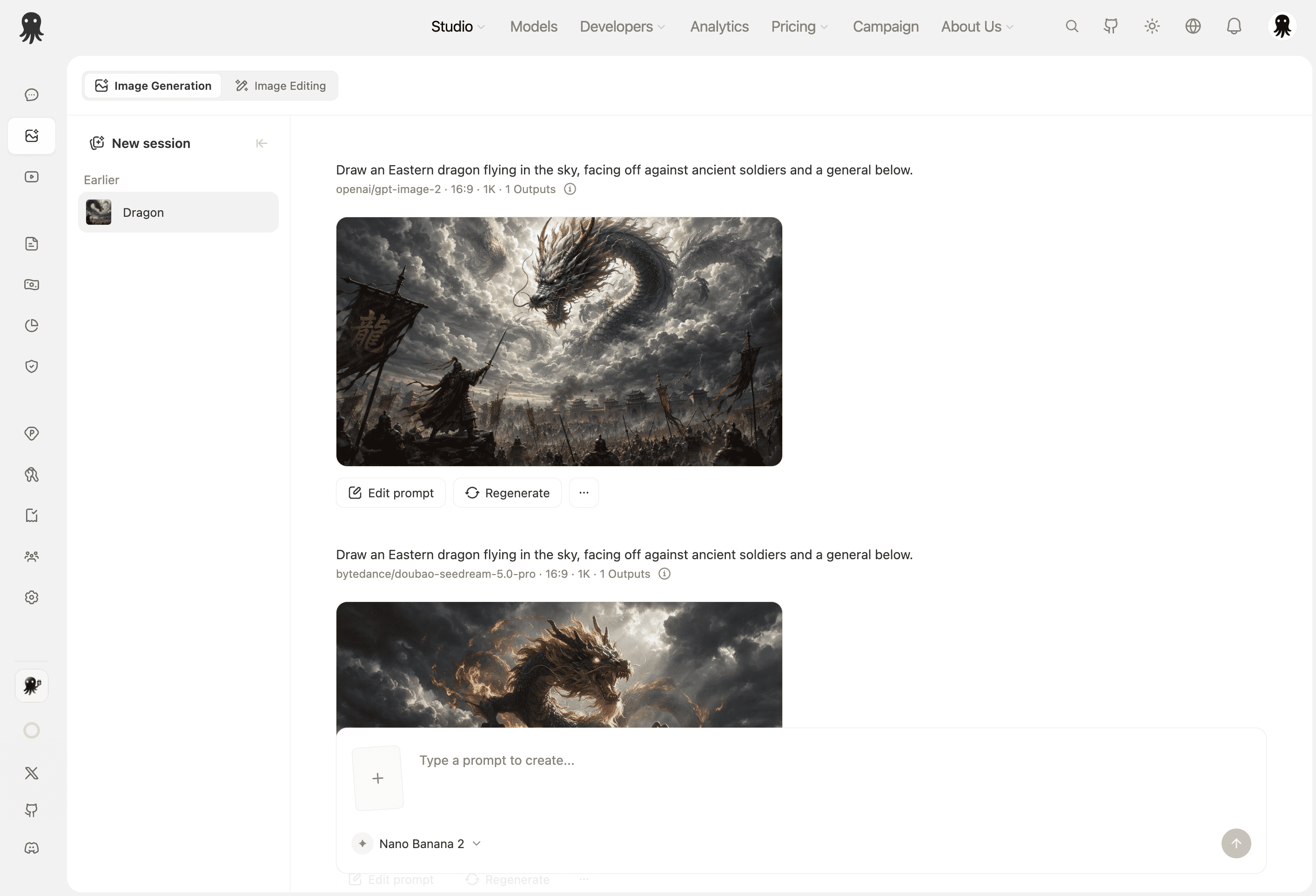
Quick Start
Generate an Image
- Visit Studio-Image
- Make sure AI Image Generation mode is selected
- Describe the image you want in the prompt composer
- Add reference images if needed
- Select one or more image models
- Configure options such as aspect ratio, resolution, output format, and output count
- Press
Enteror click the send button to start generation - Open a result to preview, download, or continue creating from it
Edit an Image
- Switch to Edit Image mode and upload an image, or open a generated result in the editor
- Choose an editing tool from the toolbar
- Make a selection, draw on the canvas, or adjust the available controls
- Add instructions to clarify the intended change
- Click Generate to create a new version
- Continue refining the result or download the version you prefer
Interface Layout
Studio-Image consists of four main areas:
| Area | Description |
|---|---|
| Mode and billing controls | Switch between image generation and editing, and select subscription or pay-as-you-go billing when available |
| History | View, switch, rename, and delete previous sessions |
| Workspace | Displays generation tasks, image results, the editing canvas, and current operation status |
| Composer and configuration | Upload reference images, enter prompts, select models, configure parameters, and submit tasks |
On mobile, the history panel is presented in a side drawer while the main creation workflow remains the same.
AI Image Generation
In AI Image Generation mode, describe the subject, scene, style, composition, lighting, color, and other details to create an image.
Image placeholder: Generation composer
We recommend showing the prompt, reference images, model selector, parameter summary, and send button.
Add Reference Images
Reference images help the model understand the subjects, style, composition, and visual elements that should be preserved or used as guidance.
- Click the upload entry on the left side of the composer to select images
- Paste images directly into the composer
- Add up to 10 reference images per generation
- Track upload progress and remove failed uploads before trying again
Supported image formats:
| Type | Formats |
|---|---|
| Images | .jpg, .jpeg, .png, .gif, .webp |
Select Models
Click the model name in the composer to open the model selector. The selector filters for models that support image output and allows you to search for and select multiple models.
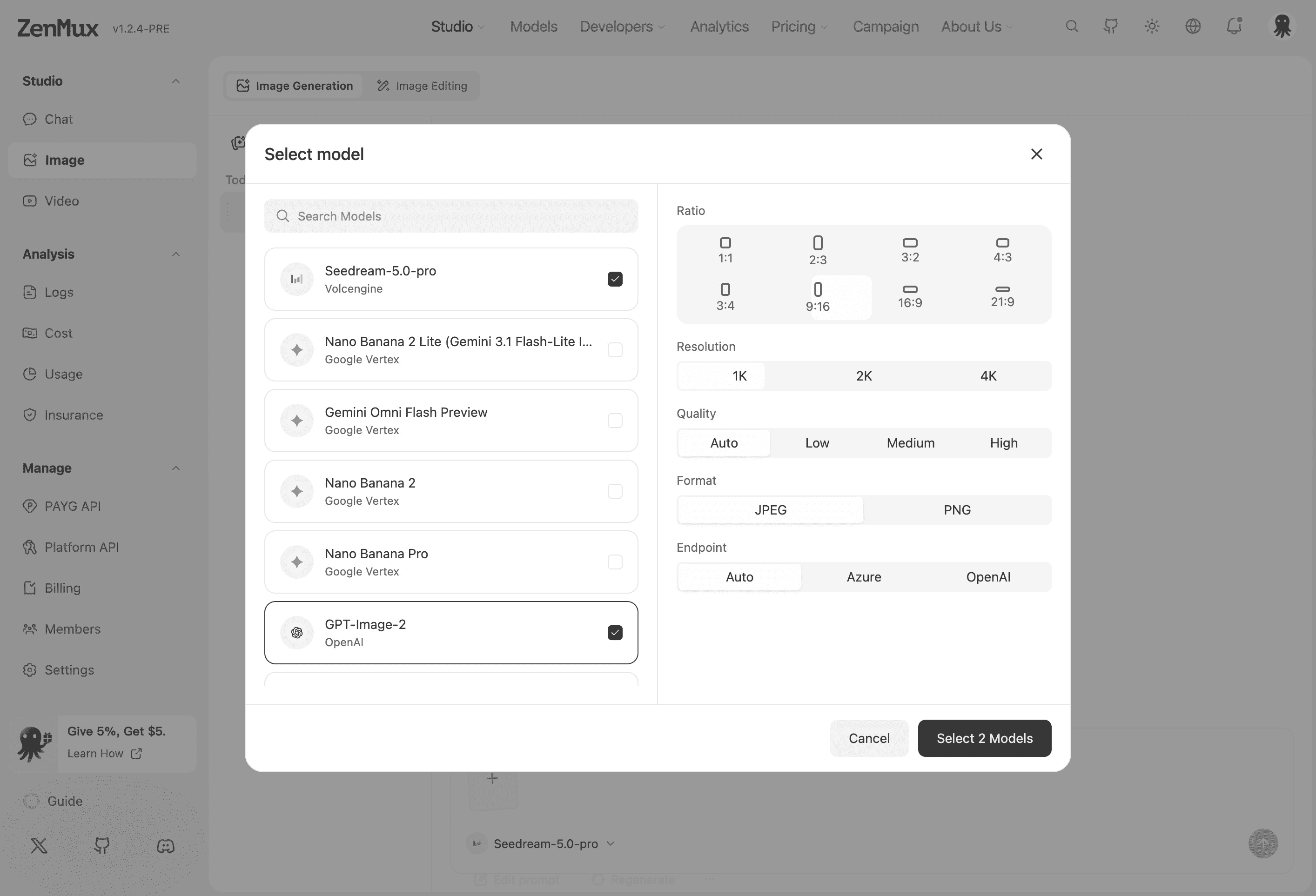
When multiple models are selected, Studio-Image runs the same creative direction in parallel so you can compare how each model interprets and renders the prompt. Each model retains its own configuration.
Supported settings vary by model. Common options include:
| Setting | Description |
|---|---|
| Aspect ratio | Choose a landscape, portrait, square, or other supported ratio |
| Resolution | Select one of the output resolutions supported by the model |
| Image quality | Shown only when the model provides quality options |
| Output format | Choose JPEG or PNG according to model capabilities |
| Output count | Set the number of images generated by each task |
Refer to the current model's configuration panel for the options available. When you switch models, unsupported settings are automatically adjusted to valid values.
Image Editing
In Edit Image mode, upload an image or open an existing generated result in the editing workspace to continue refining it.
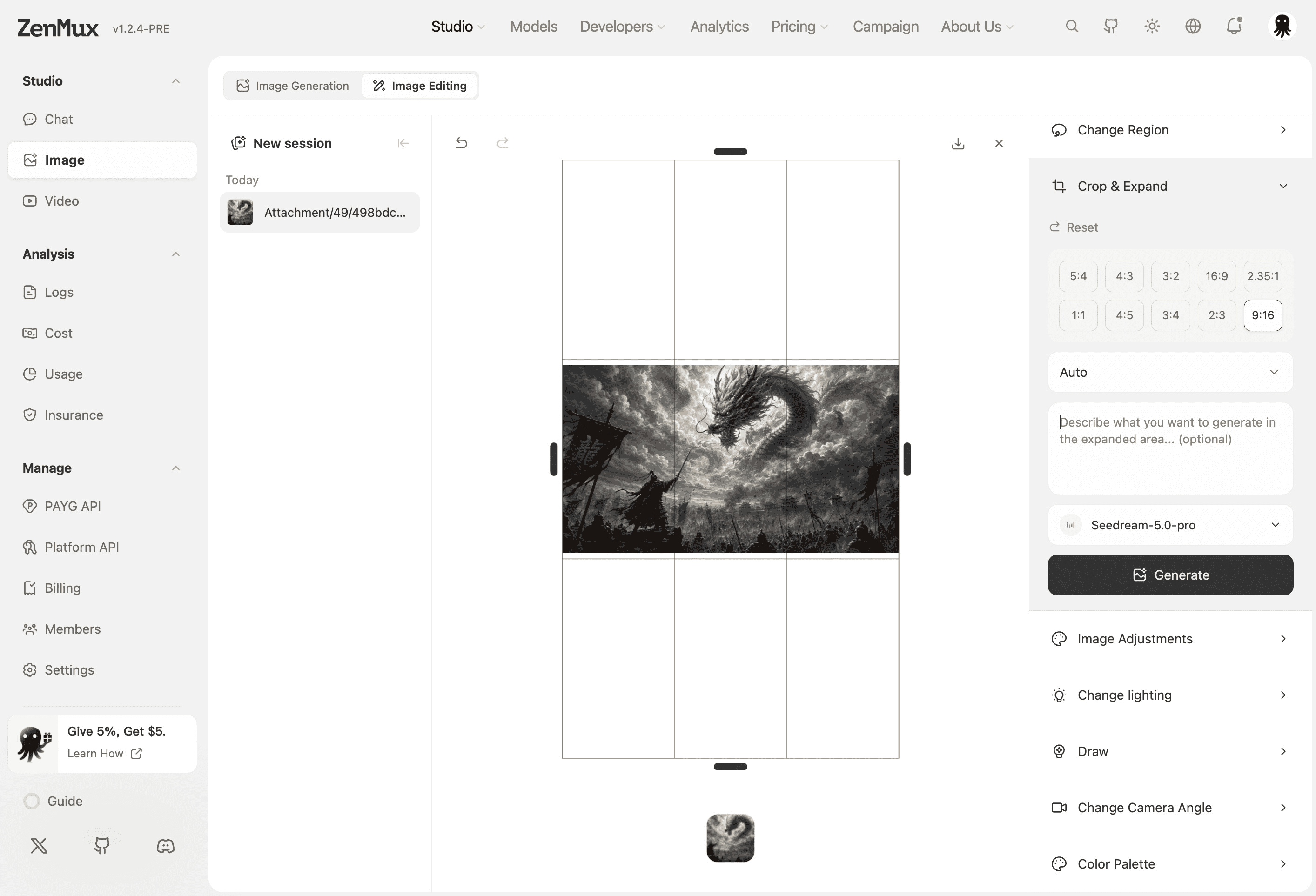
The following editing tools are currently available:
| Tool | Purpose |
|---|---|
| Smart Edit | Describe a change in natural language and let AI apply a broad or semantic edit |
| Change Region | Select or paint a target area and modify only that part of the image |
| Crop & Expand | Change the canvas ratio or bounds and use AI to fill the expanded area |
| Image Adjustments | Adjust brightness, contrast, saturation, and color temperature |
| Change Lighting | Add and move light sources, then adjust their direction, brightness, and color |
| Draw | Use brush strokes to mark the target area and communicate editing intent |
| Change Camera Angle | Adjust the viewpoint, vertical angle, and zoom |
| Color Palette | Apply a new color scheme to the image |
Smart Edit
Describe what you want to change, such as replacing a background, changing a material, removing an object, or applying a new visual style. To reduce unintended changes, also state which subjects, composition, and details should remain unchanged.
Change Region and Draw
Use a selection, rectangle, or brush to mark the area you want to modify, then enter your editing instructions. Studio-Image sends the region information and editing intent to the model while attempting to preserve everything outside the selected area.
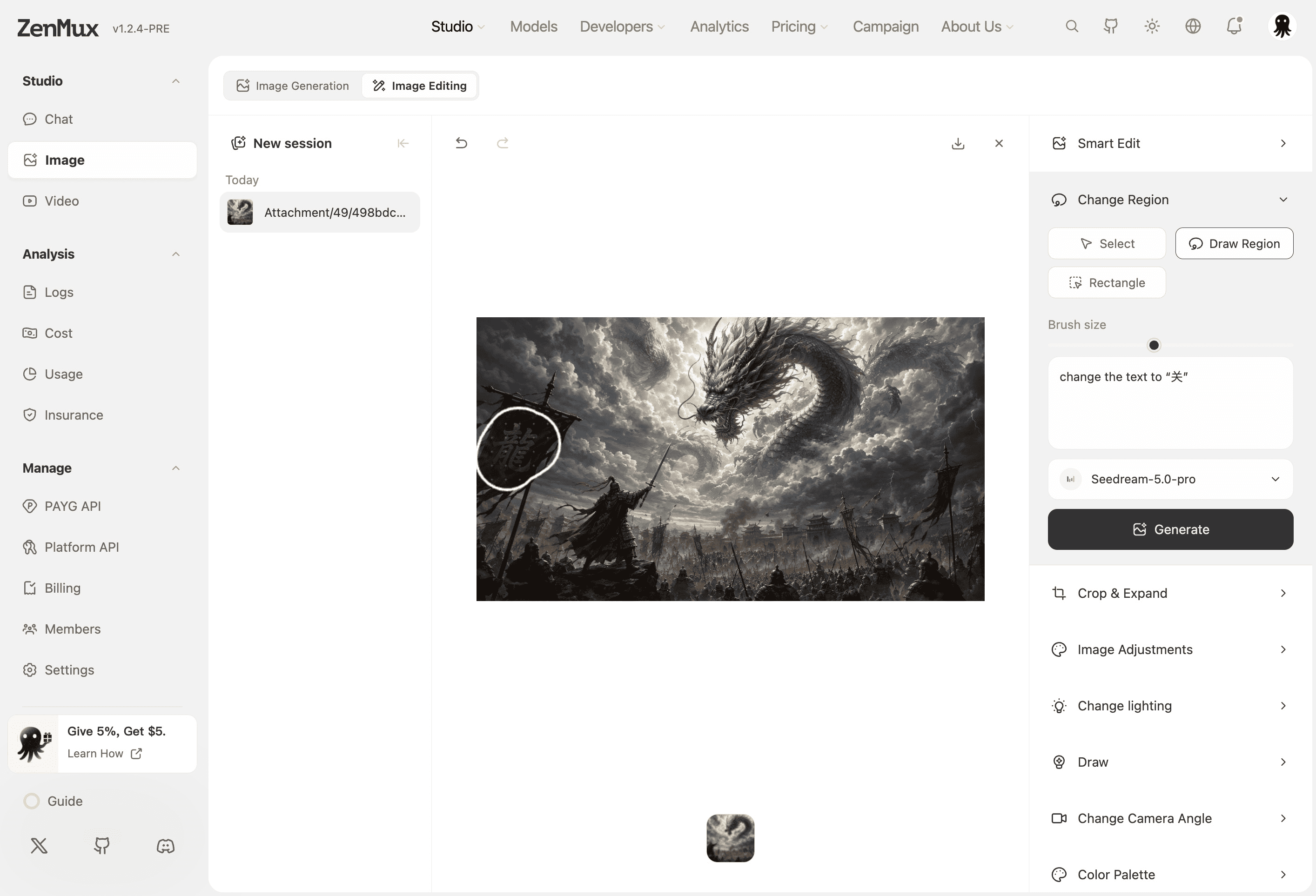
Crop & Expand
Choose a target aspect ratio and adjust the frame to crop the existing image or expand beyond its edges. When expanding, you can add instructions describing what the new area should contain.
Image Adjustments
Image Adjustments supports brightness, contrast, saturation, and color temperature. Changes appear immediately on the canvas preview and are saved as a new image version when confirmed.
Change Lighting
Add and move multiple light sources on the canvas, then configure each light's direction, brightness, color, and visibility. You can also add a text instruction to describe the intended lighting atmosphere.
Change Camera Angle and Color Palette
- Change Camera Angle: Adjust rotation, vertical perspective, and zoom
- Color Palette: Select or customize a color scheme for the model to apply to the image
Preview and Continue Creating
Click a generated result to open the full-size preview. The preview includes the prompt, model, aspect ratio, resolution, output count, creation time, and other details.
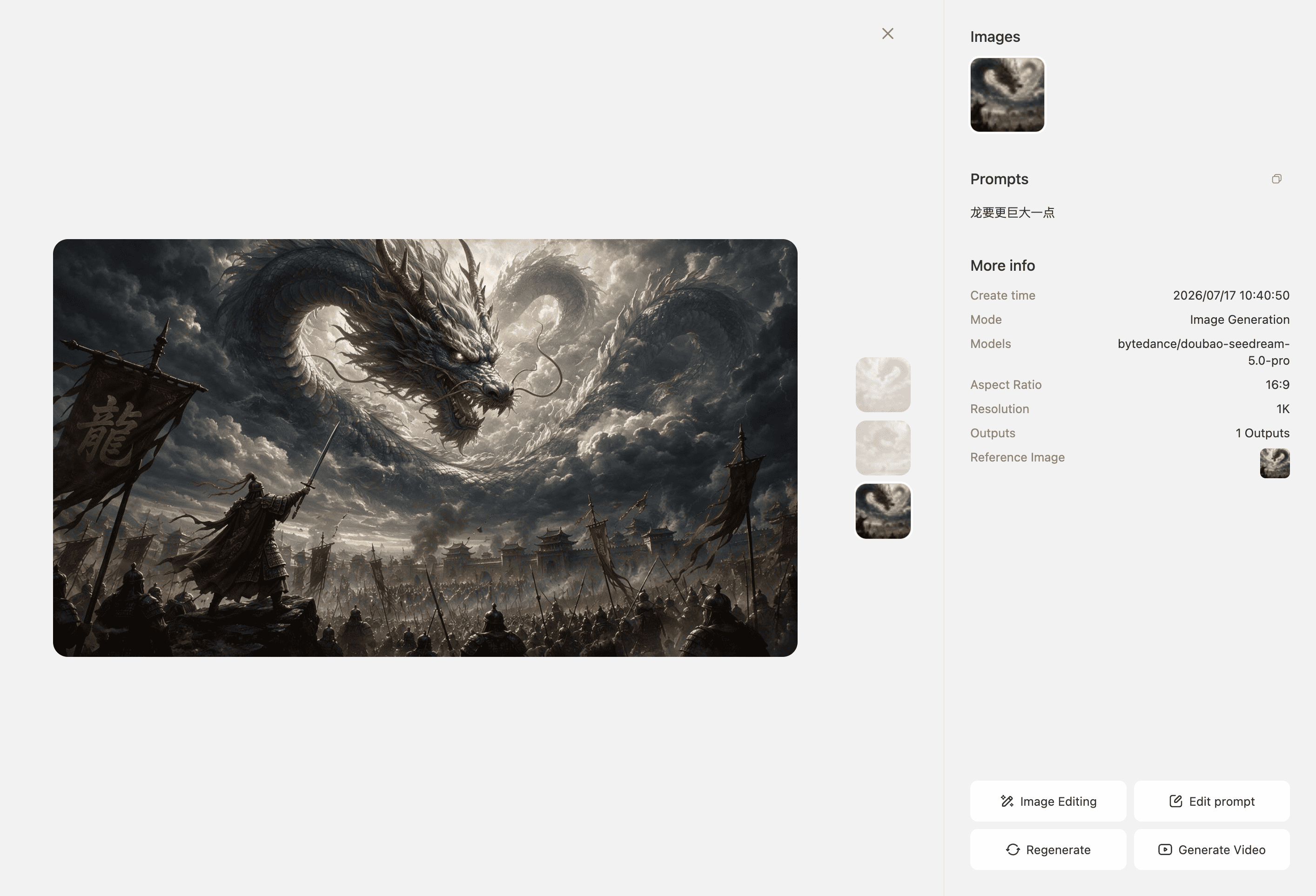
From a result card or the preview, you can:
- Download the image
- Use the image as a reference for a new generation
- Open the image in the editing workspace
- Reuse or revise the original prompt
- Regenerate with the same configuration
- Send the image to Studio-Video to create a video
Creation History
Studio-Image saves your work as sessions. Sessions in the history panel include preview images and are grouped by time.
You can:
- Create a new session for a different creative direction
- Switch sessions to revisit or edit previous results
- Rename sessions to make them easier to find
- Delete sessions you no longer need
- Load older generation tasks in the current session
Before deleting a task or session, make sure you no longer need its images and download any important results.
Billing Mode
Studio-Image displays Subscription or Pay As You Go according to the billing methods available to the current account. Some account types, such as organization accounts, may not display the billing switch.
| Mode | Description |
|---|---|
| Subscription | Uses the model quota included in your subscription plan |
| Pay As You Go | Uses your account balance and charges for actual generation usage |
Costs may vary by model, resolution, and output count. Refer to the options shown in Studio-Image and the current account configuration for details.