

Organizations
ZenMux organizations provide teams with a separate Pay As You Go workspace. Members can use Studio and APIs with a shared organization balance, while administrators centrally manage members, API keys, usage, limits, and billing.
Personal and organization accounts are separate
An organization has its own balance, API keys, request logs, and usage data. After switching accounts, confirm the active account before topping up, creating an API key, or making requests.
Feature overview
| Feature | Description |
|---|---|
| Account switching | Switch between your personal account and organizations you have joined |
| Member collaboration | Invite members by email and assign the Admin or Member role |
| API key management | Members create and use their own organization API keys; admins can view all keys in the organization |
| Member limits | Set total, daily, weekly, and monthly Credits limits |
| Usage analysis | Review request logs, usage, and cost by member |
| Centralized billing | Pay for team usage with a separate organization Pay As You Go balance |
Organizations currently use Pay As You Go. They do not inherit Builder Plan subscriptions or allowances from personal accounts. For top-up and billing details, see Pay As You Go.
Create an organization

- Sign in to ZenMux and open Manage > Settings.
- Find Organization in the Account section and click Create.
- Enter an organization name and optionally upload a logo.
- Click Create. ZenMux automatically switches to the new organization.
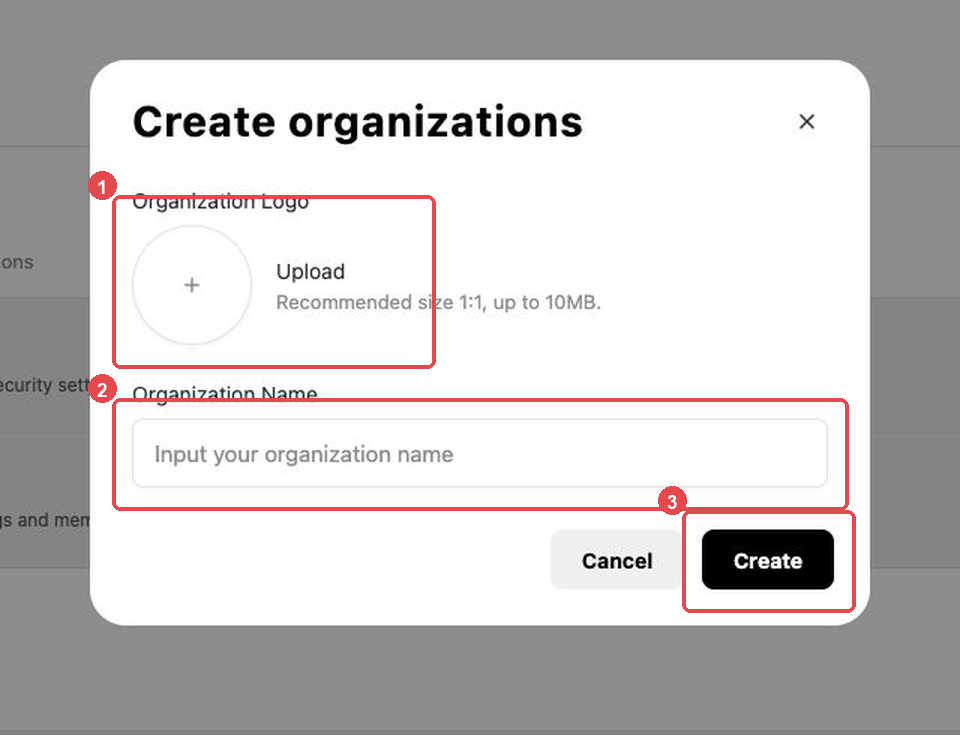
Organization names can contain up to 64 characters. A logo must be an image no larger than 10 MB; a 1:1 image is recommended.
Current default limits
Each user can create up to 1 organization and join up to 5 organizations. ZenMux may adjust the effective limits for an account, so refer to the message shown in the console.
If Organization is not shown in Settings, the feature may not yet be available for your account. If the button is disabled, check whether you have reached the organization creation or membership limit.
Switch accounts
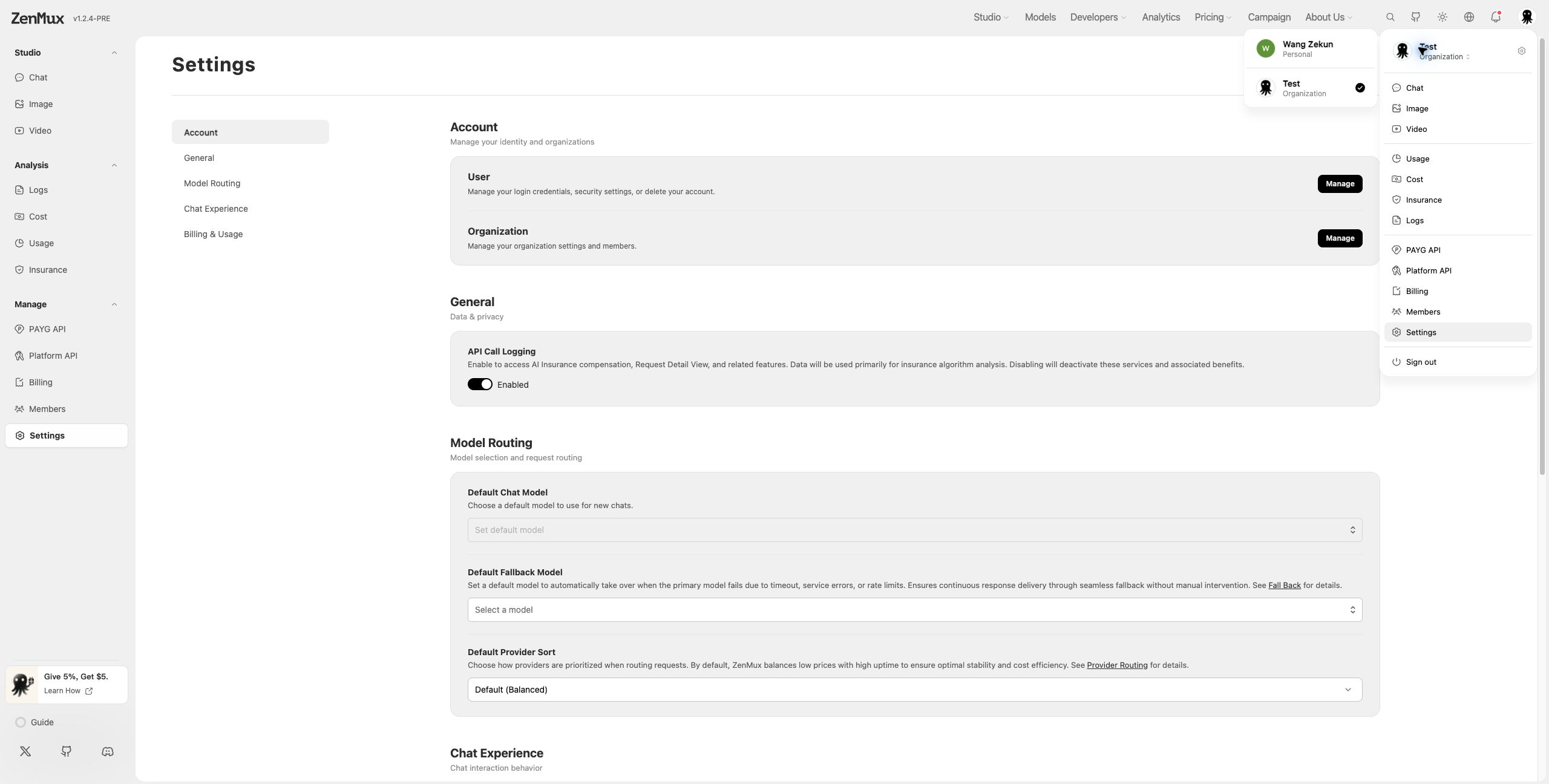
- Click your avatar in the upper-right corner.
- Click or hover over Personal / Organization below the active account name.
- Select a personal account or organization from the account list.
After switching, the page uses the balance, API keys, logs, and usage data of the selected account. Pages restricted to personal accounts or organization admins may redirect to an accessible page.
Invite and manage members
Only organization admins can open Manage > Members and manage members.
Invite members
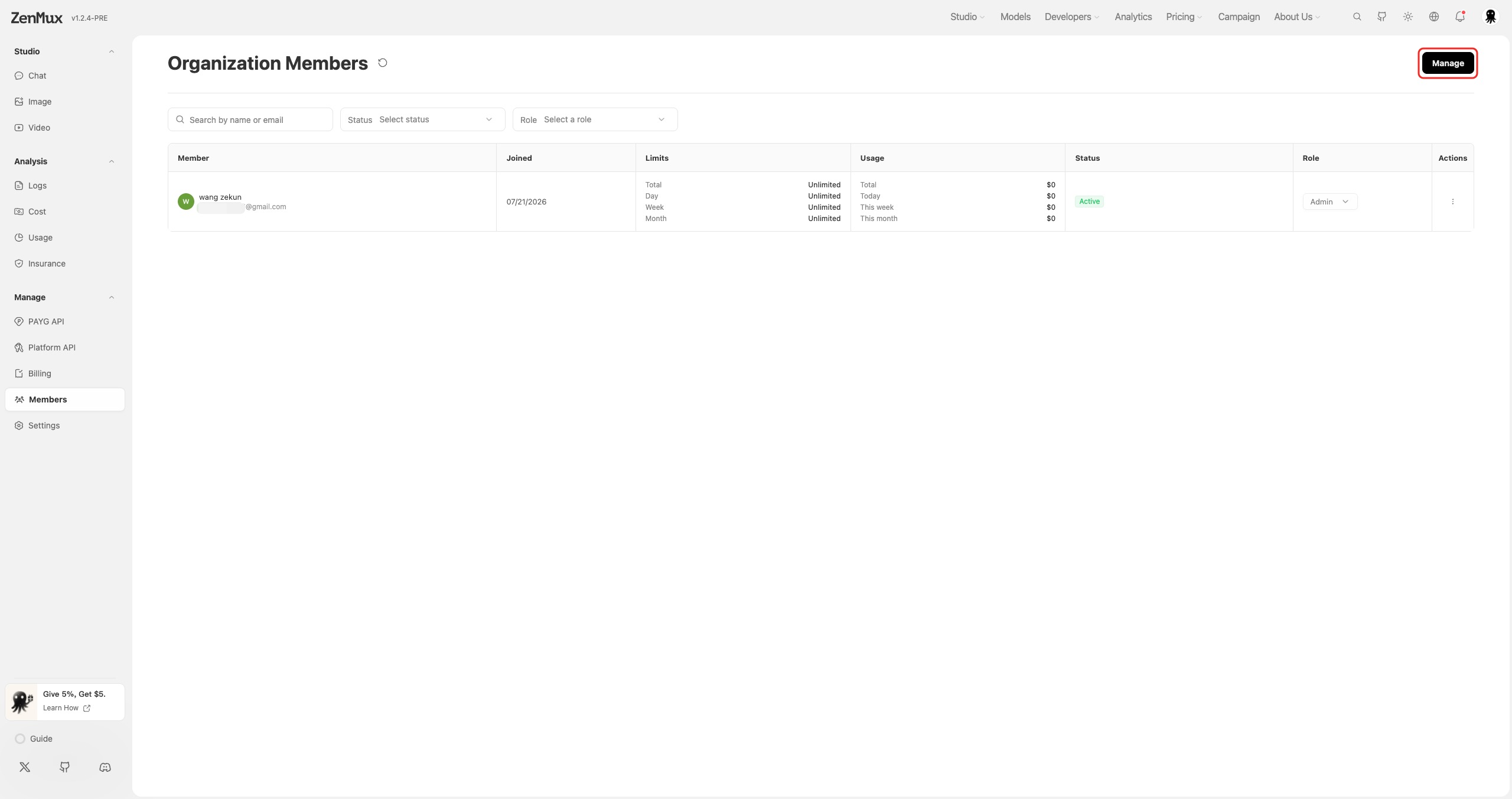
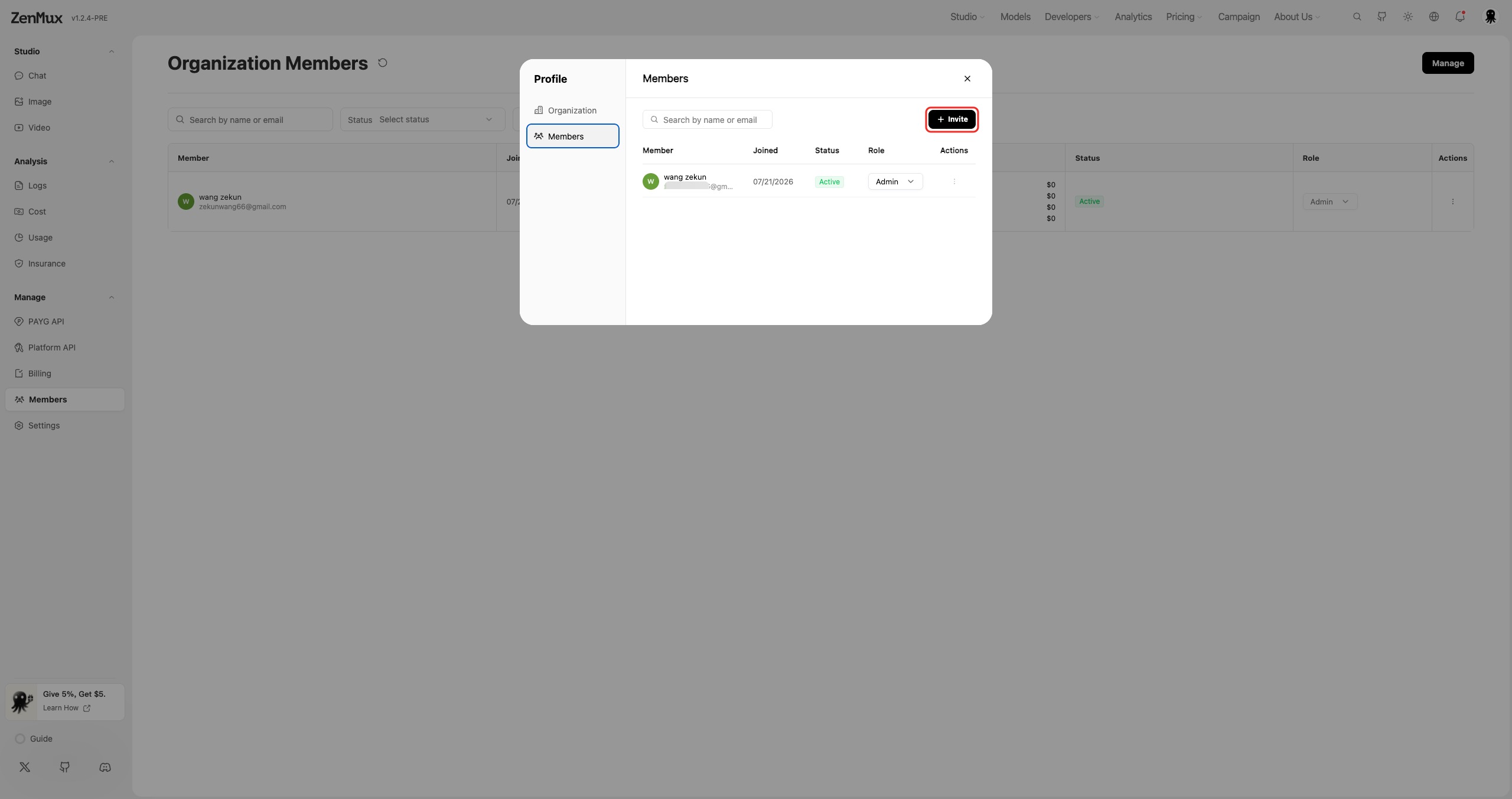
- Switch to the target organization.
- Open Manage > Members and click Invite.
- Enter one or more member email addresses and assign the Admin or Member role.
- Send the invitations.
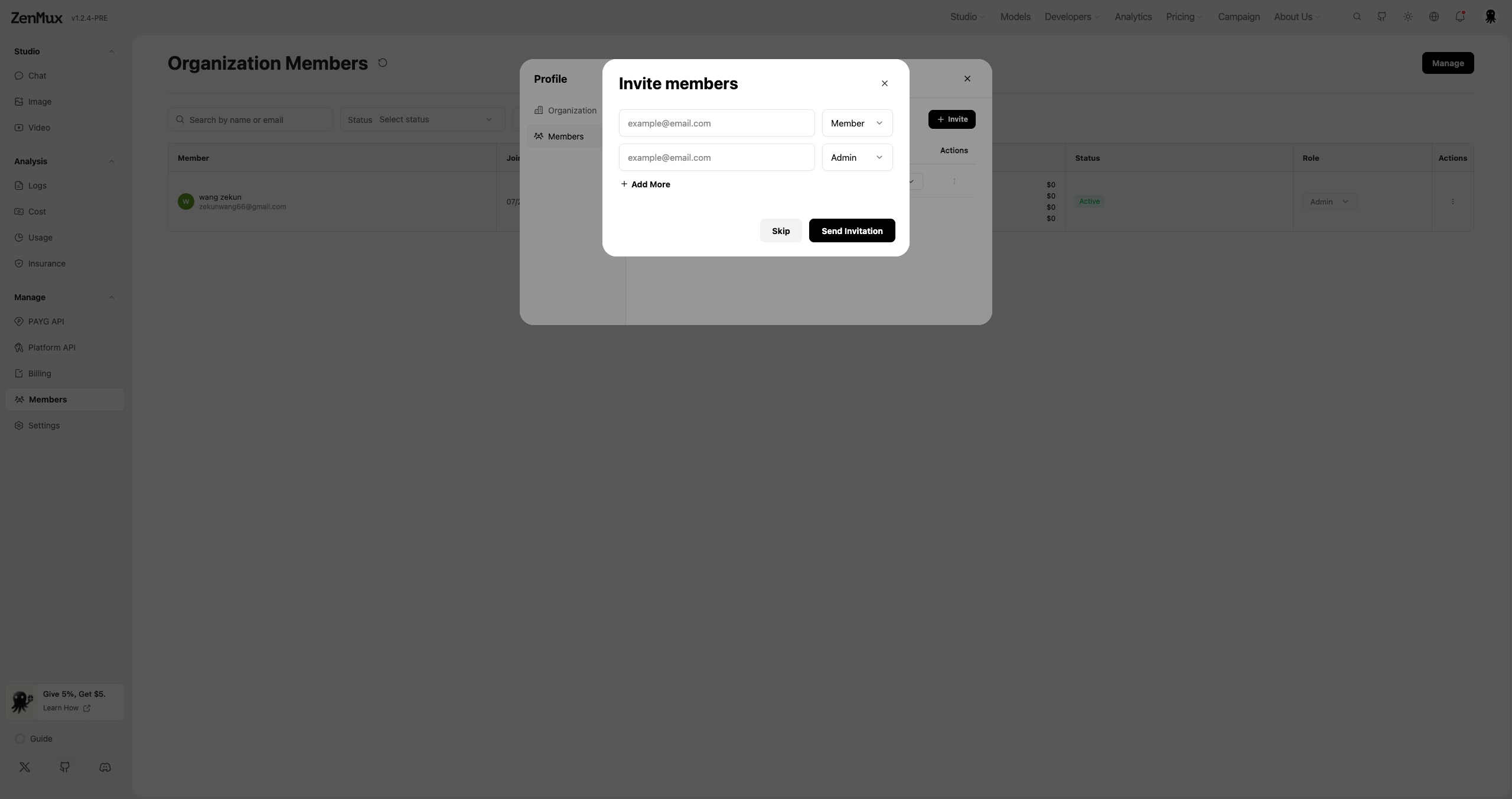
An invitee must open and accept the link while signed in to a ZenMux account with the same email address. A new user can register with that email first. Invitation links expire after 7 days.
Member limit
Each organization can have up to 50 active or pending members. Invites for existing active members are skipped, and admins can cancel pending invitations.
Role permissions
| Capability | Admin | Member |
|---|---|---|
| Use the organization balance in Studio and APIs | ✓ | ✓ |
| Create and manage personal organization API keys | ✓ | ✓ |
| View personal logs and usage | ✓ | ✓ |
| View all members, logs, usage, and cost | ✓ | — |
| Invite or remove members and change roles | ✓ | — |
| Set member Credits limits | ✓ | — |
| Top up and manage billing and balance alerts | ✓ | — |
| Edit or delete the organization | ✓ | — |
An organization must always have at least one admin. The last admin cannot be demoted, removed, or leave until another member is made an admin.
Set member limits
Admins can set the following Credits limits for each member on the Members page:
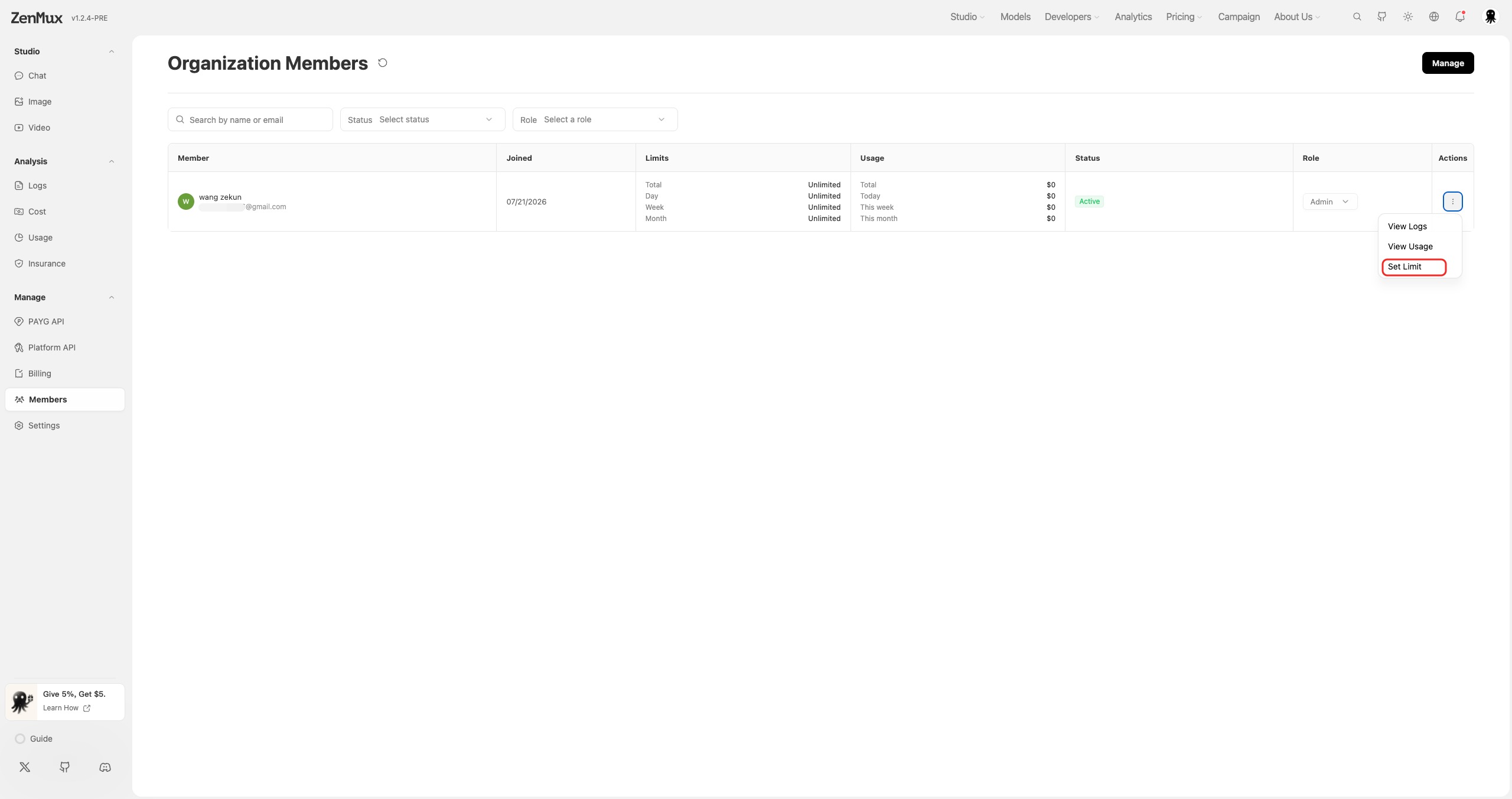
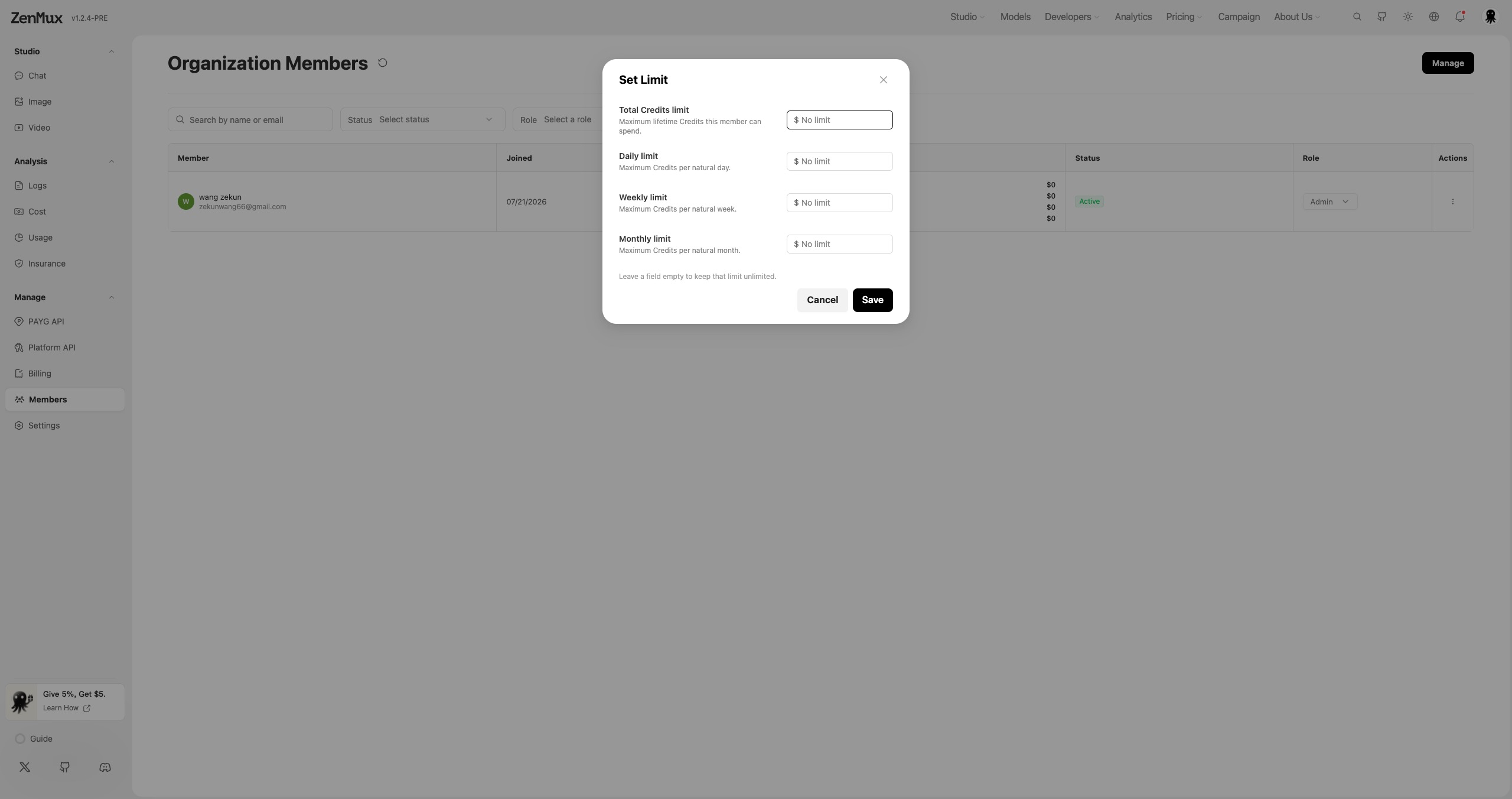
| Limit | Description |
|---|---|
| Total | Maximum cumulative Credits the member can consume |
| Day | Maximum Credits per calendar day |
| Week | Maximum Credits per calendar week |
| Month | Maximum Credits per calendar month |
Leave a field empty for no limit. When a member reaches a period limit, access to organization credits is paused until the next period. A Total limit does not reset automatically and must be adjusted by an admin.
Use organization API keys
After switching to an organization, API keys created under Manage > Pay As You Go or Manage > Platform API belong to that organization, and their usage is charged to the organization balance.
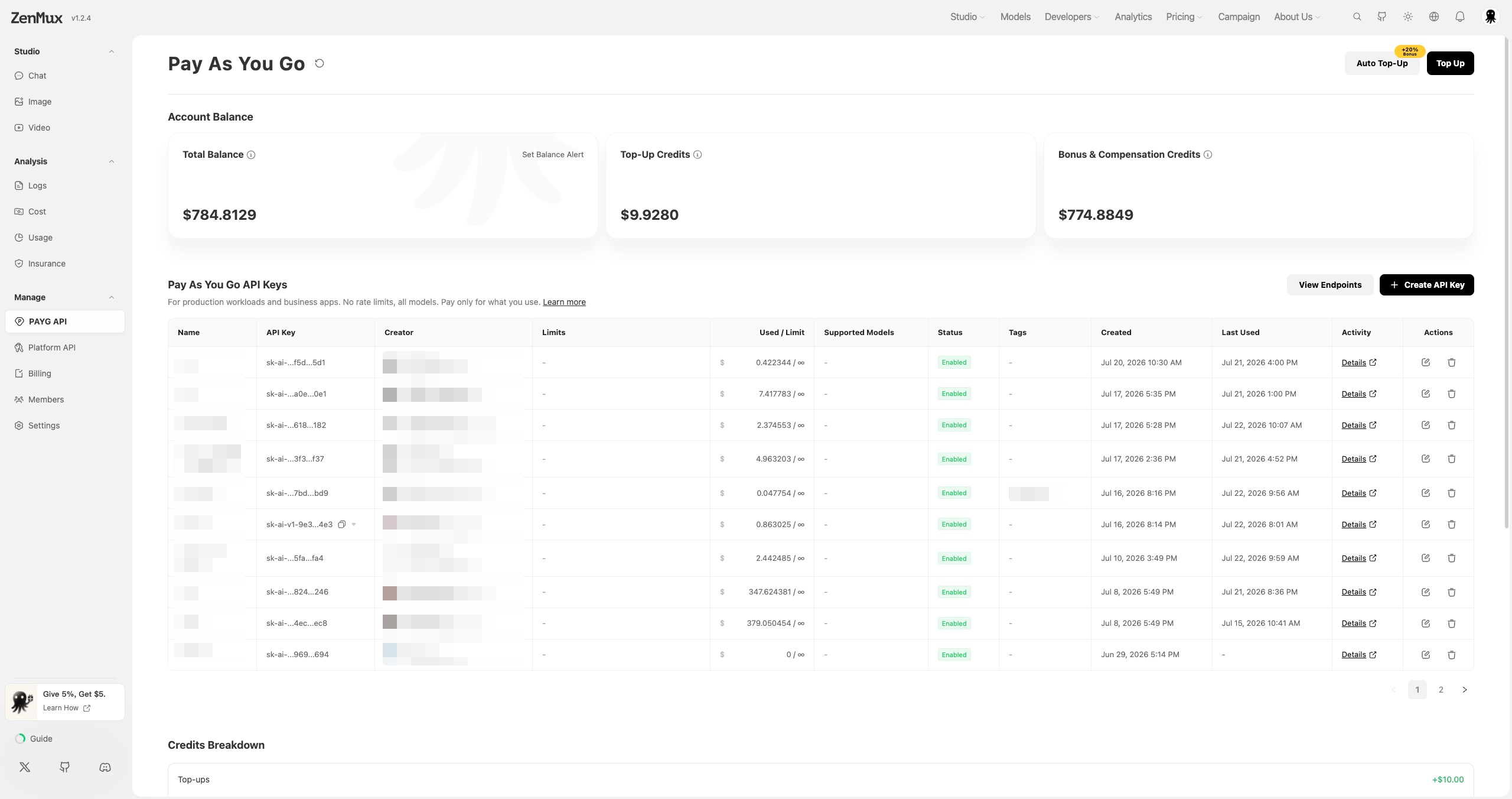
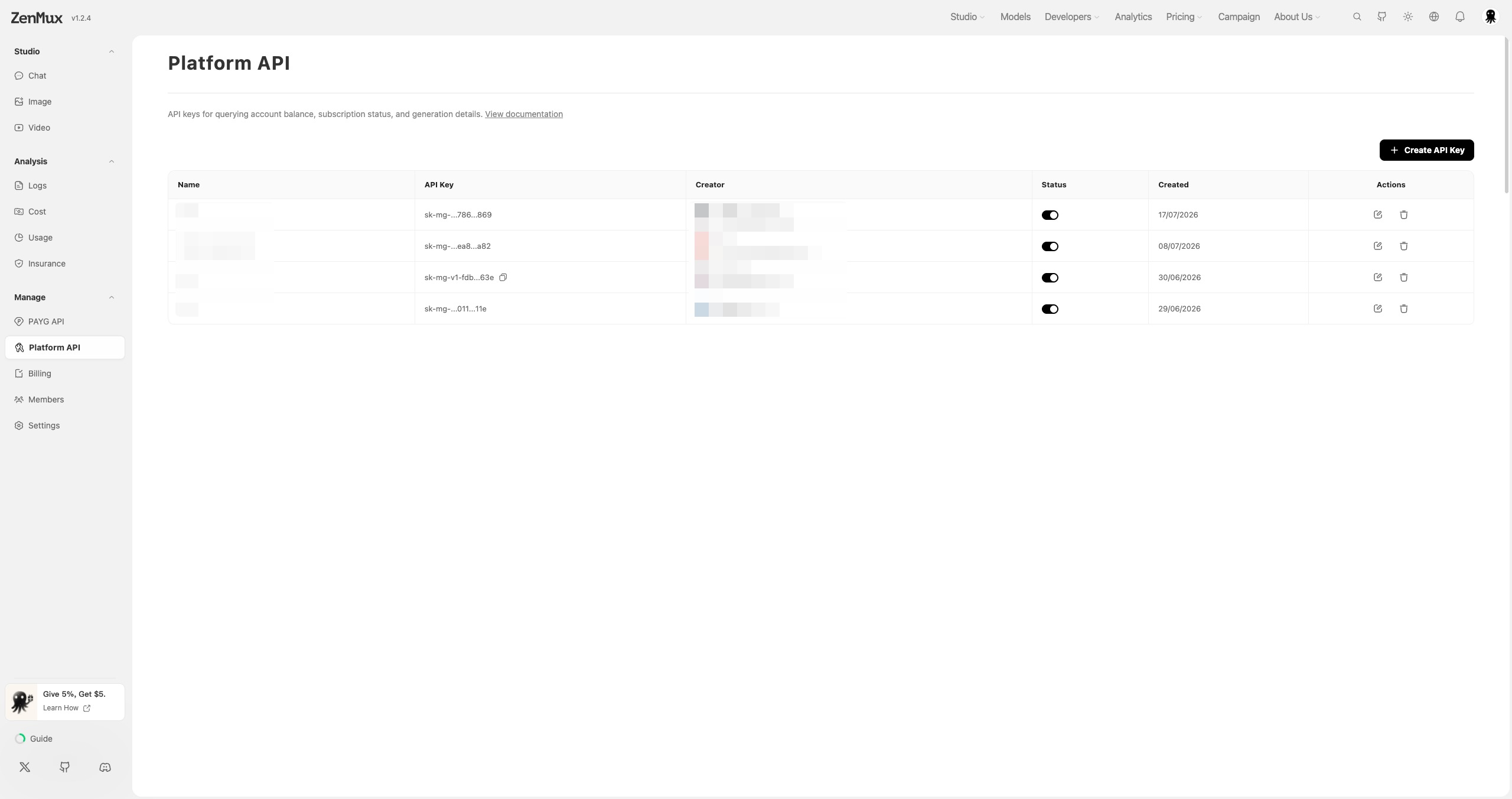
- Members can only view, copy, and manage the API keys they create.
- Admins can view all organization API keys and their creators, but full keys belonging to other members are hidden.
- Admins can filter usage and cost data by member.
- When a member leaves or is removed, API keys created by that member in the organization are disabled immediately.
Switch accounts before creating a key
Personal and organization data are fully isolated. Before creating an API key, verify that the correct Organization is active in the avatar menu.
Top-ups, billing, and usage
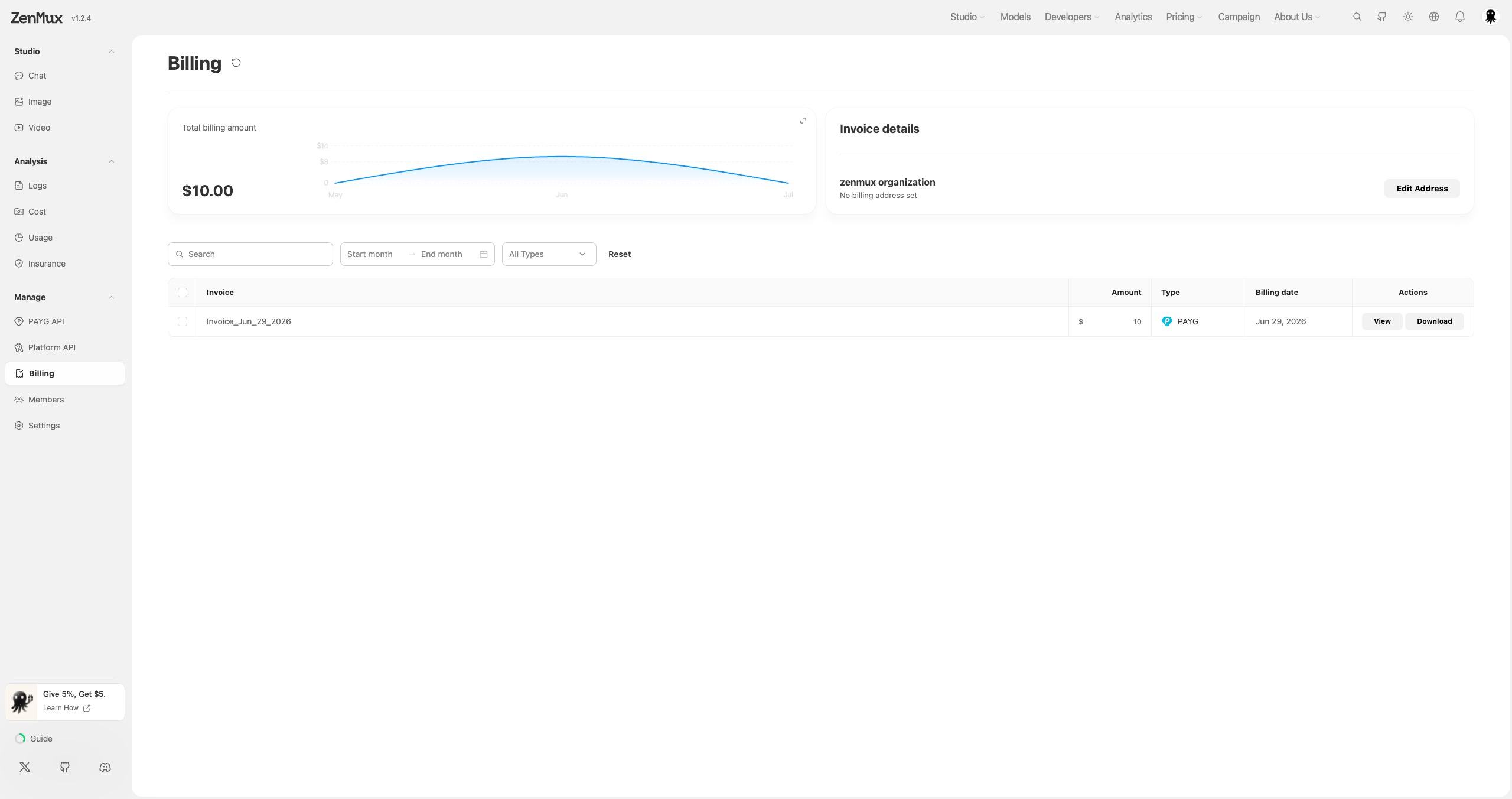
Organization admins can top up, configure automatic top-ups and balance alerts under Manage > Pay As You Go, and maintain billing information under Manage > Billing. Members can use organization credits but cannot manage top-ups or billing.
On the Logs, Usage, and Cost pages under Analysis:
- Admins can view organization-wide data and filter by member.
- Members can only view data associated with themselves and their own API keys.
Edit, leave, or delete an organization
Click your avatar and then the settings icon beside the active organization to open organization management. You can also click Manage for Organization under Manage > Settings > Account.
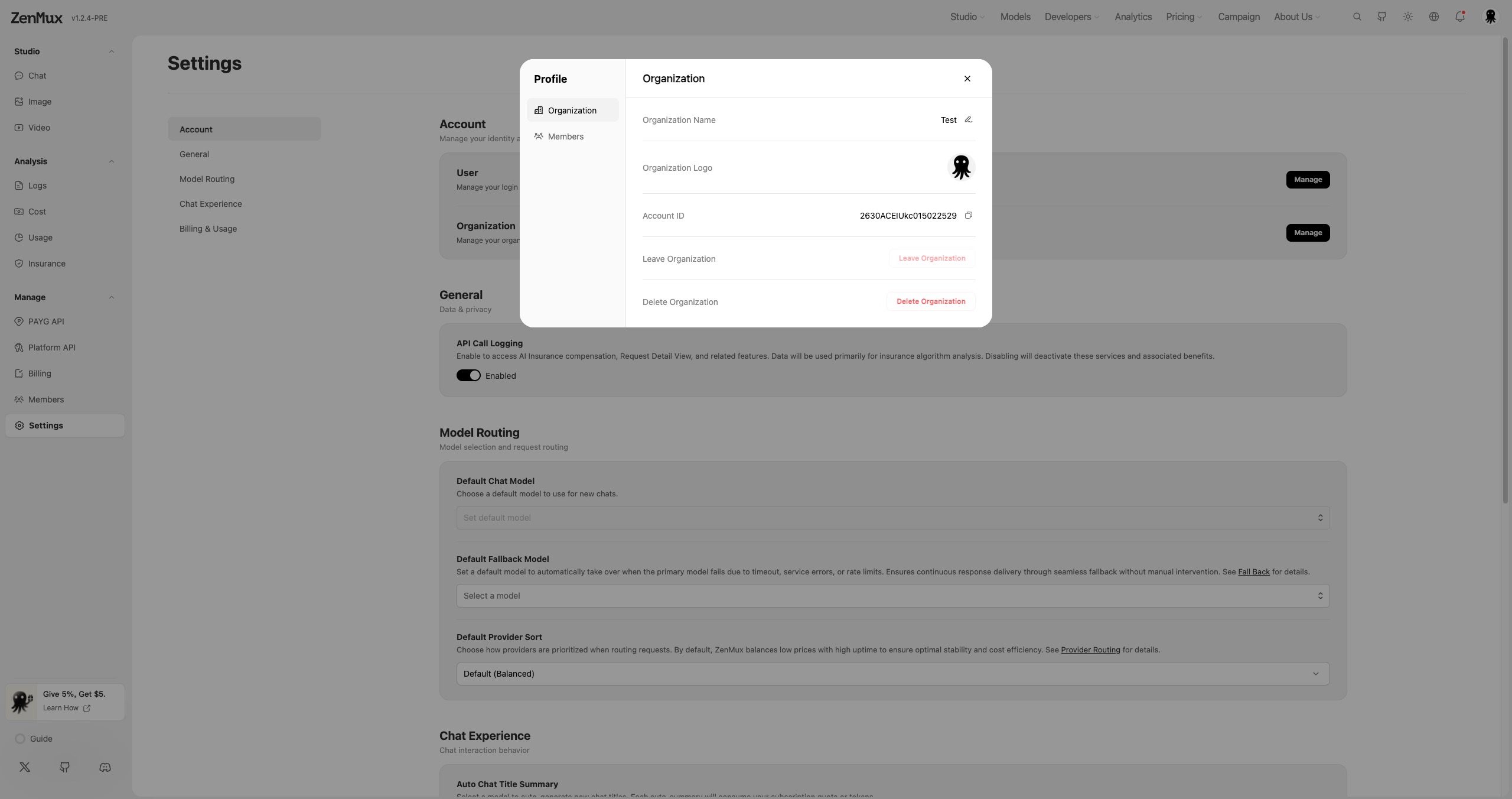
Edit the organization
Admins can change the organization name and logo. Members can view organization information but cannot edit it.
Leave the organization
Any member can leave an organization. After leaving:
- ZenMux automatically switches back to the personal account;
- you can no longer access organization data;
- API keys you created in the organization are disabled immediately.
The last admin must appoint another admin before leaving.
Delete the organization
Only admins can delete an organization. Enter DELETE to confirm. If the organization has an outstanding balance, settle the debt first.
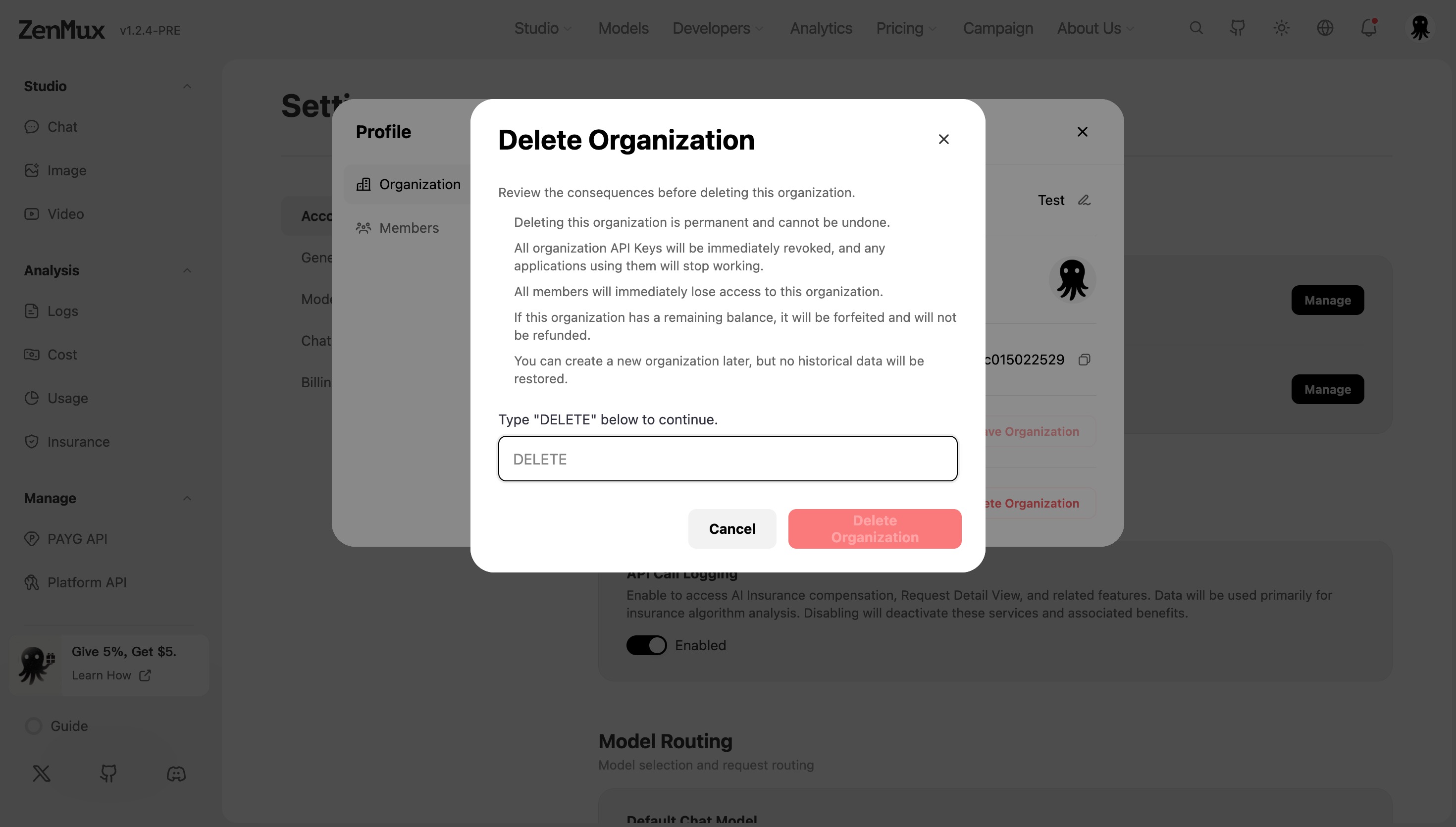
Deletion cannot be undone
Deleting an organization immediately disables every API key, removes every member, and forfeits any remaining balance without a refund. Organization history cannot be restored.
FAQ
Why can't I accept an invitation?
Confirm that the email of the signed-in account exactly matches the invited email, and check whether the invitation has expired, been canceled, or already been accepted.
Why are a member's API requests rejected?
Check the organization balance, API key status, and the member's Total, Day, Week, and Month limits. Organization API keys are also disabled when their owner leaves or is removed.
Why can't a member see Members or Billing?
These pages are available only to organization admins. An admin can change a member's role to Admin on the Members page.