

Guide to Using Cherry Studio via OpenQiao
Cherry Studio is an elegant cross-platform AI desktop client that supports multiple mainstream large language model services. Through integration with OpenQiao, you can access the extensive model catalog aggregated on the OpenQiao platform within Cherry Studio, enjoying more flexible model selection and better pricing.
Compatibility Notes
OpenQiao fully supports the OpenAI Chat Completions protocol and can be seamlessly integrated into clients like Cherry Studio that support custom OpenAI-compatible endpoints. Simply add OpenQiao as a model provider to use all models that support the OpenAI protocol.
Note that the base_url for the OpenAI protocol is https://openqiao.com/api/v1/.
Configuration
Step 1: Download and Install Cherry Studio
Go to the Cherry Studio official site to download the version for your operating system and complete the installation.
Step 2: Add the OpenQiao Model Provider
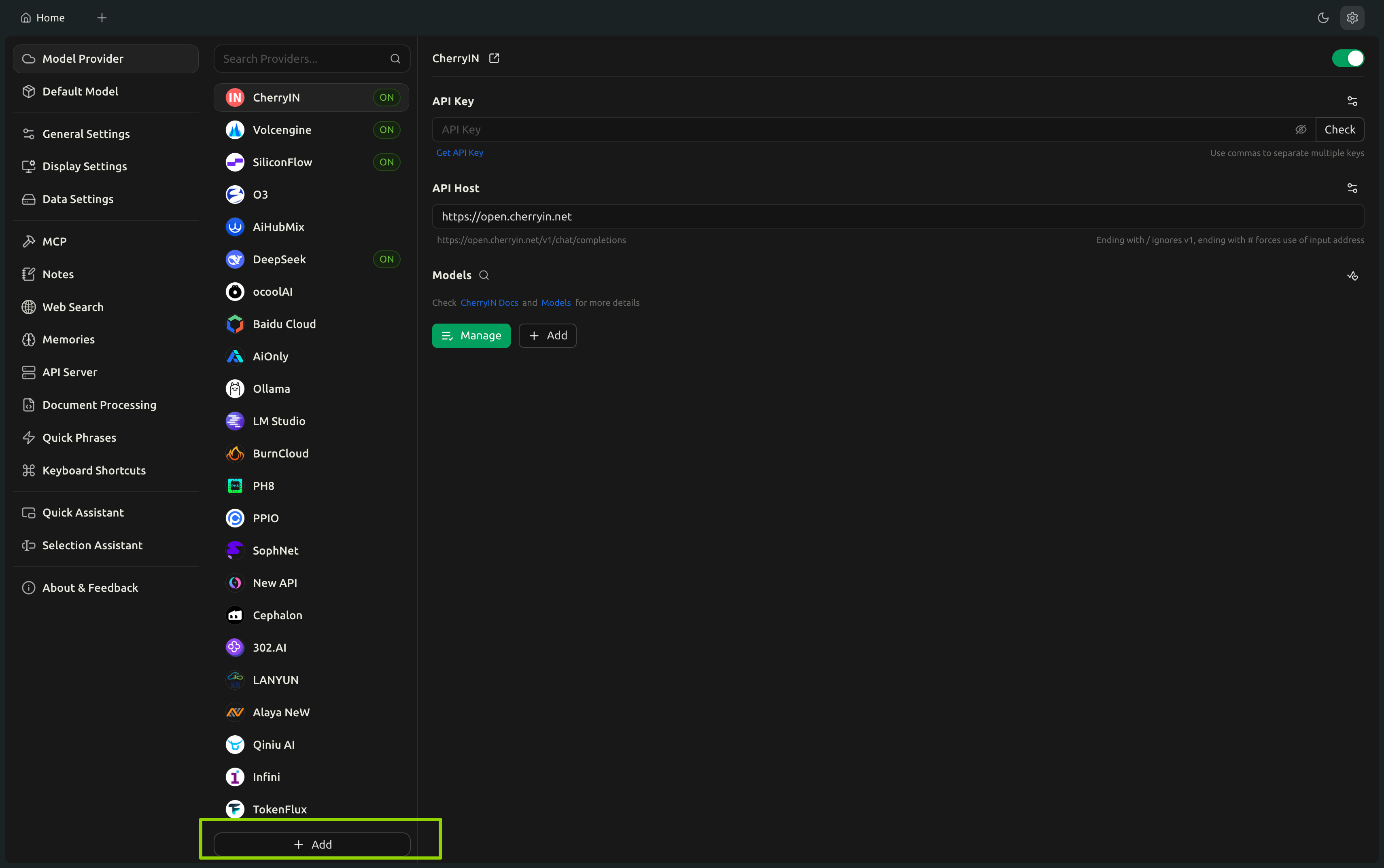
Open Cherry Studio and go to the Settings → Model Provider page
Click the Add button to add a new model provider
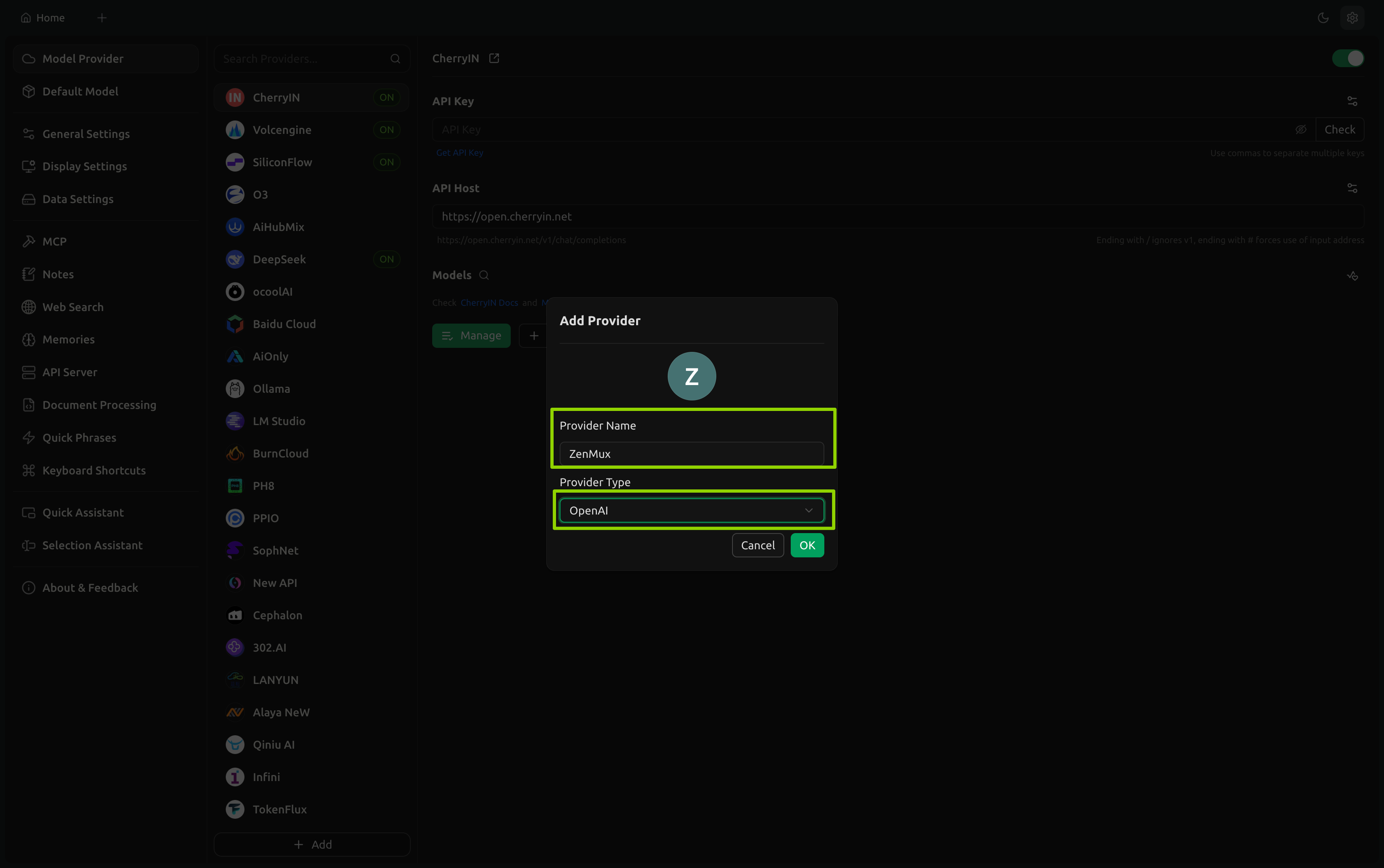
Fill in the following details in the configuration dialog:
- Provider Name:
OpenQiao(or any preferred name) - Provider Type: select
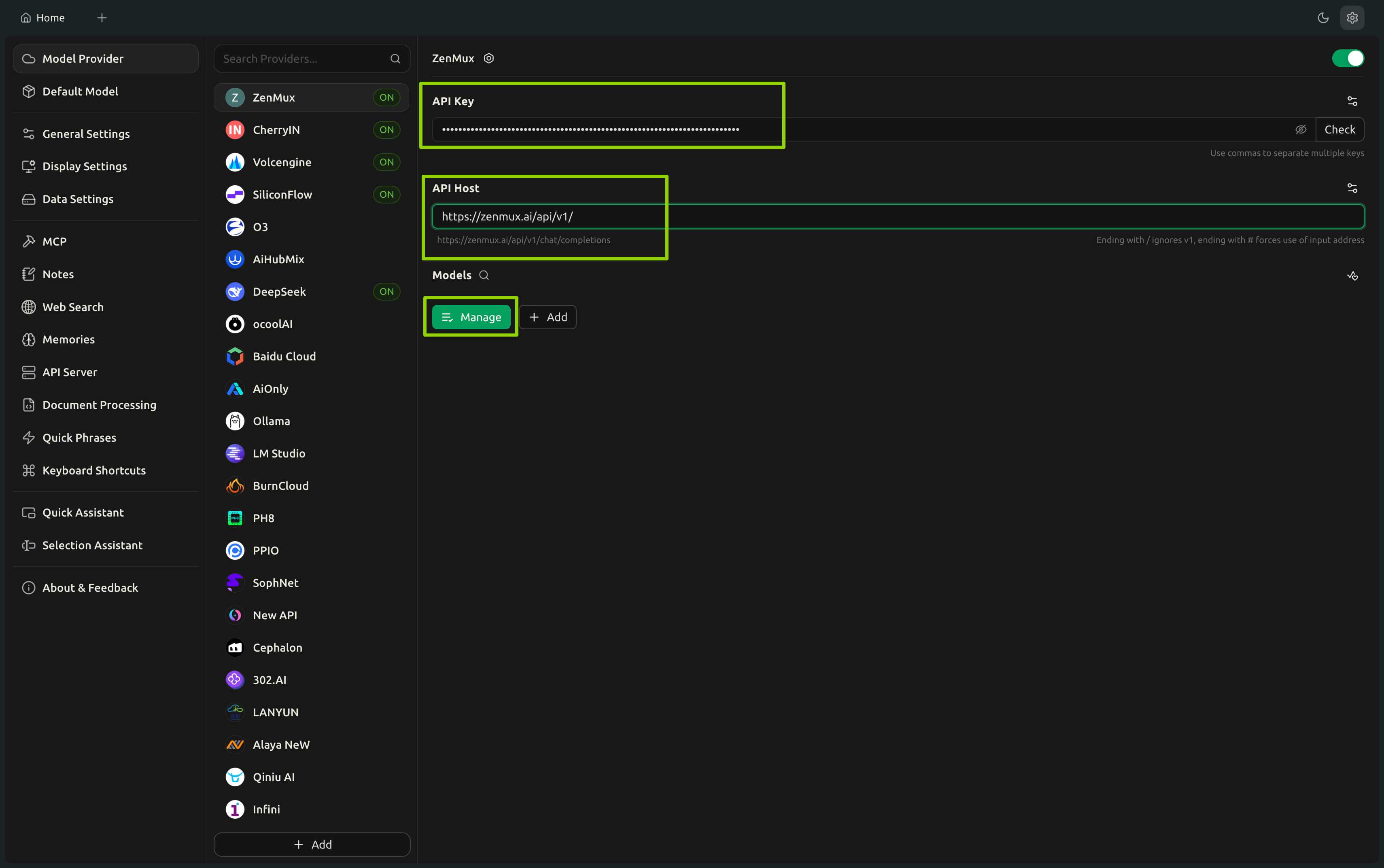
OpenAI - API Key: enter your OpenQiao API Key (format
sk-ai-v1-xxx) - API Host:
https://openqiao.com/api/v1/
- Provider Name:
Important Configuration
Make sure to replace sk-ai-v1-xxx with your actual OpenQiao API Key. You can obtain your API Key from the OpenQiao Console.
Configuration Notes
- Provider Name: Customizable; using
OpenQiaois recommended for clarity - Provider Type: Must select
OpenAI, as OpenQiao supports the OpenAI Chat Completions protocol - API Key: Your OpenQiao API Key for authentication and billing
- API Host: OpenQiao’s OpenAI-compatible endpoint address; must end with
/
Step 3: Fetch the Available Model List
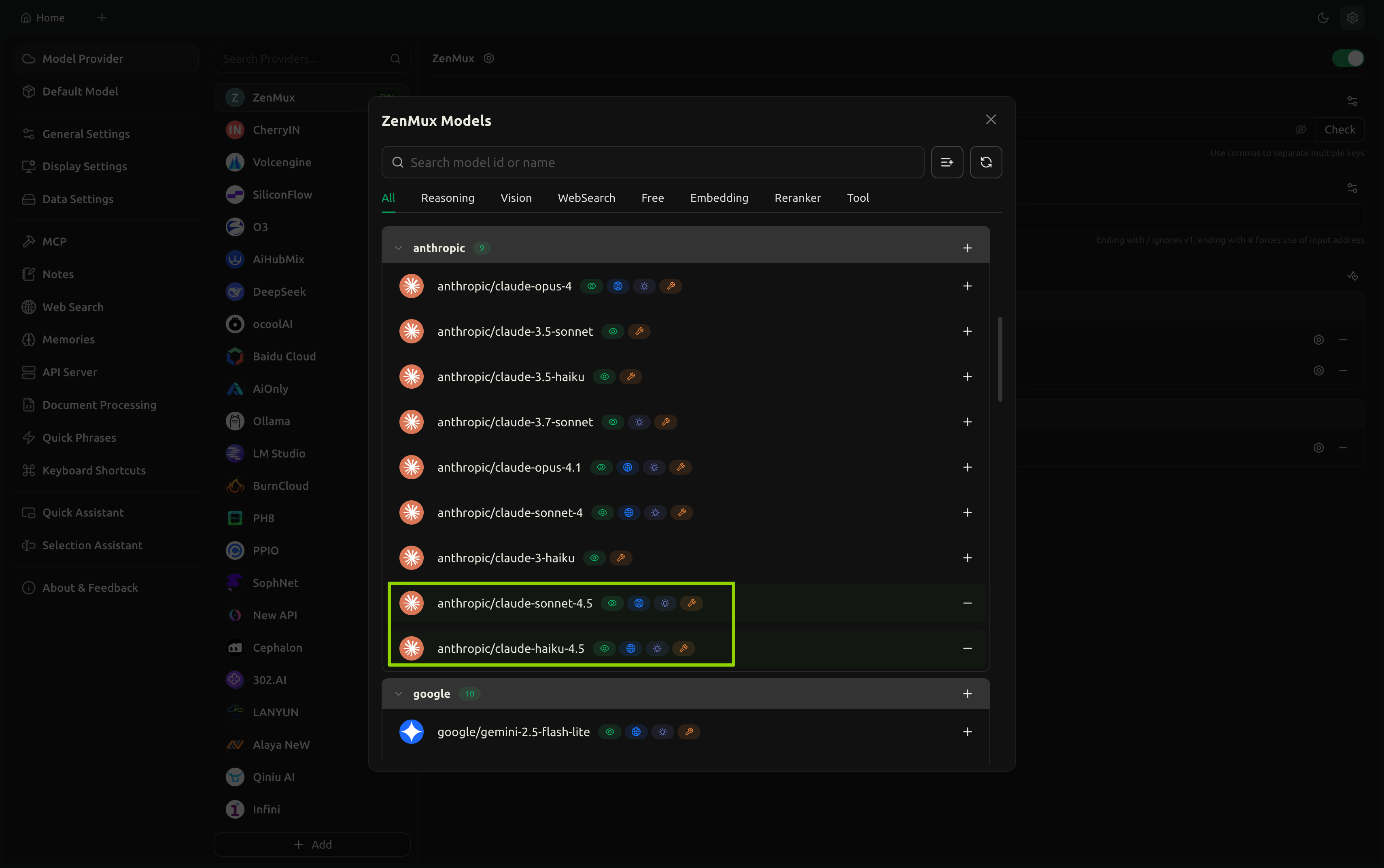
After configuration, click the Manager button. Cherry Studio will automatically fetch the list of all models that support the OpenAI Chat Completions protocol from OpenQiao.
Model Discovery
Cherry Studio will automatically discover all available models via OpenQiao’s /v1/models API endpoint—no manual addition required.
Step 4: Add the Models You Need
From the fetched model list, select the models you want to use and add them to your model library.
Model Recommendations
We recommend adding models across different capability and price tiers to suit various use cases:
- High-performance models:
openai/gpt-5,anthropic/claude-sonnet-4.5 - Balanced models:
google/gemini-2.5-pro,x-ai/grok-4-fast - Cost-effective models:
deepseek/deepseek-chat,qwen/qwen3-coder-plus
Step 5: Start a Conversation
Go to the chat interface, select any model under the OpenQiao provider, and start using it.
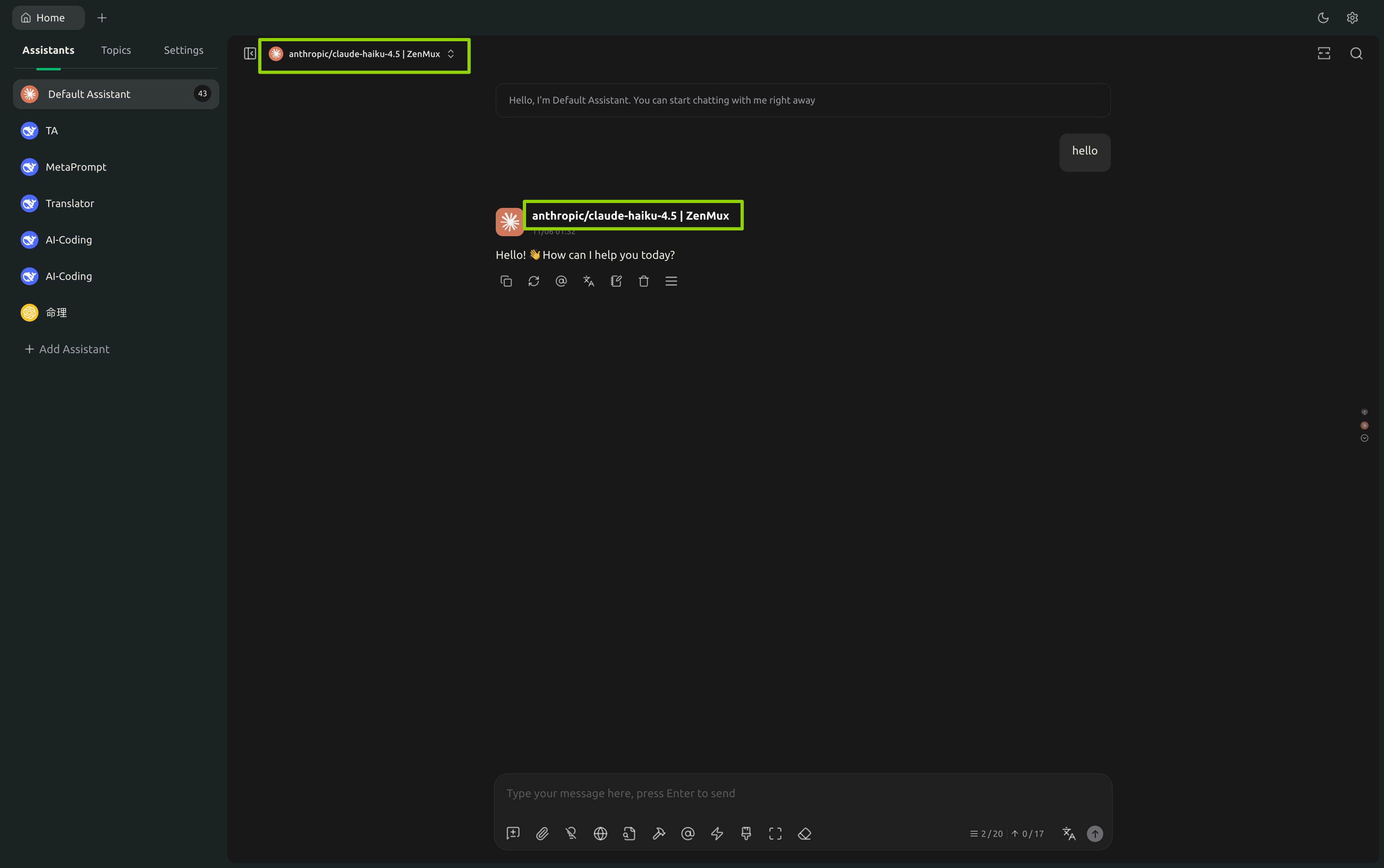
Model Switching
You can switch between models at any time during a conversation. Cherry Studio preserves the chat history, making it easy to compare outputs from different models.
Supported Models
Models Supporting the OpenAI Protocol
OpenQiao offers a large and constantly growing set of models that support the OpenAI Chat Completions protocol. You can view the full list in the following ways:
- Visit the OpenQiao Model List and filter by "OpenAI API Compatible"
- Or visit the detail page of a specific model to check its protocol support
Explore More Models
Visit the OpenQiao Model List to learn about all available models and their details, including pricing, context length, feature capabilities, and more.
Usage Experience
Once configured, you can seamlessly use a variety of OpenQiao models within Cherry Studio:
- Unified chat interface without switching between different clients
- Real-time model switching to compare output quality
- Complete chat history management and export
- Advanced features such as file uploads and multimodal input
Feature Support
Feature support varies across models, such as visual understanding and function calling. Refer to the detail page of each model for its capabilities.
Troubleshooting
Common Issues
API Key Error
Issue: Invalid or unauthorized API Key when adding a provider
Solutions:
- Check if the API Key was copied correctly; avoid extra spaces or line breaks
- Confirm the API Key format starts with
sk-ai-v1- - Verify the API Key is activated and the account has sufficient balance
- Log in to the OpenQiao Console to check the API Key status
Unable to Fetch Model List
Issue: Unable to retrieve the model list after clicking the Manager button
Solutions:
- Check if the API Host is correctly set to
https://openqiao.com/api/v1/(note the trailing slash) - Verify network connectivity and try accessing
https://openqiao.comin your browser - Ensure firewall or proxy settings are not blocking access to the OpenQiao servers
- Check whether your Cherry Studio version is up to date; older versions may have compatibility issues
Model Invocation Failed
Issue: Errors returned after selecting a model and sending a message
Solutions:
- Confirm the selected model is still available on the OpenQiao platform (some models may be retired)
- Check whether your account balance is sufficient
- Verify that the model supports your request parameters (e.g., temperature, max_tokens, etc.)
- Review the detailed error message and adjust request parameters accordingly
- Try switching to another model to determine if the issue is specific to a particular model
Slow Response
Issue: Model responses are slow or lagging
Solutions:
- Check your network quality and diagnose with a speed test tool
- Try switching to a model labeled "fast" (e.g.,
x-ai/grok-4-fast) - Reduce the token count per request by lowering the
max_tokensparameter - Avoid peak usage periods or select models with lower load
- If the issue persists, contact OpenQiao technical support for assistance